
Dumaco's bending workflow used to start with an engineer manually loading parts into AutoPOL (FCC Software AB), picking a machine, configuring settings, and clicking through the program. AutoPOL Bending Automation removes that step entirely: a Windows service watches the SolidWorks export folder, picks the right bending machine for each part, applies the right AutoPOL settings, and runs the bending program — fully unattended, around the clock.
Engineers continue to design parts in SolidWorks as before. An add-in writes parts out to a watched folder, where the service picks them up and queues them for processing. Every queued part flows through machine selection, program generation, output validation and result reporting, each step recorded in detail. The service runs continuously in the background with a queue that survives a restart or a crash, so pending work is never lost.
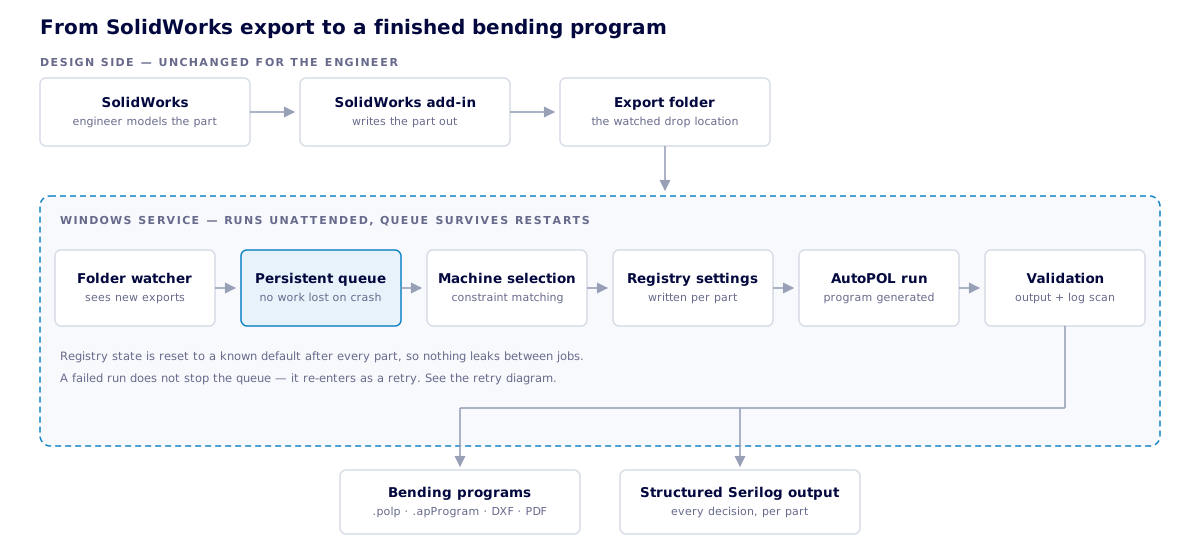
The engineer’s side is unchanged; everything from the export folder onwards runs unattended.
Each part is matched to the most appropriate bending machine based on a configurable set of constraints: allowed thicknesses, maximum weight, and per-machine bending limits (length × thickness ranges). Multiple machines can be defined with priority levels, so the service always picks the cheapest capable machine first and falls back to a more capable one when needed. Adding a new machine to the floor is a one-line change in a JSON config — no code changes, no redeployment.
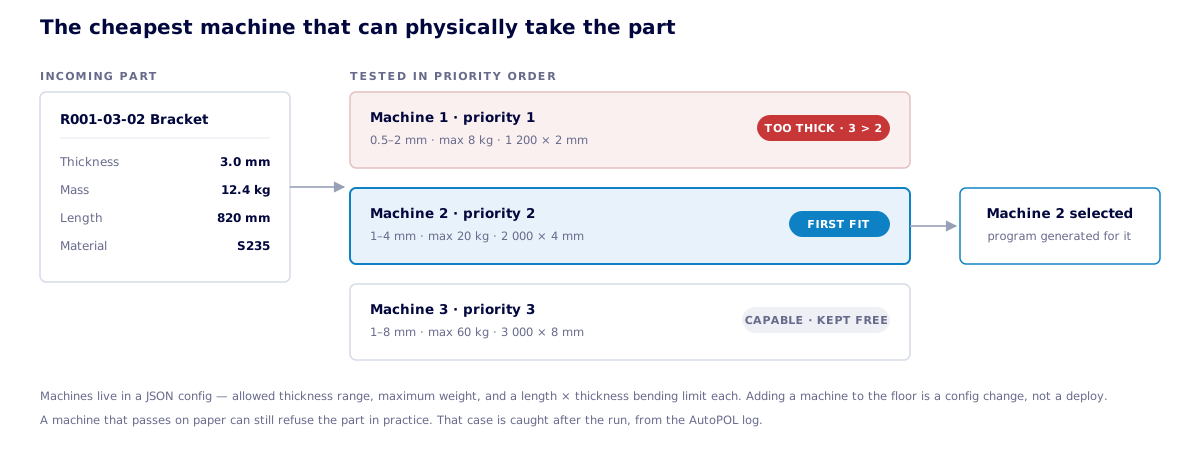
Priority order means the more capable machines stay free for the parts that actually need them.
Different parts need different settings — a heavy plate needs different tooling than a thin bracket. The service works through a configurable list of conditions per part, weighing mass, thickness, material and the chosen machine in priority order, and applies the matching settings just before the program runs. Afterwards everything is put back to a known default, so no job ever inherits leftover settings from the one before it.
Bending programs fail for two very different reasons: the settings were wrong for that part, or the machine simply cannot bend it. The service tells the two apart by reading what the bending software reported, and handles each differently. A settings problem is retried with a configurable list of fallbacks. A capability problem produces a new program for an alternative machine instead. Retries never trigger further retries, so nothing loops indefinitely, and every attempt is recorded.
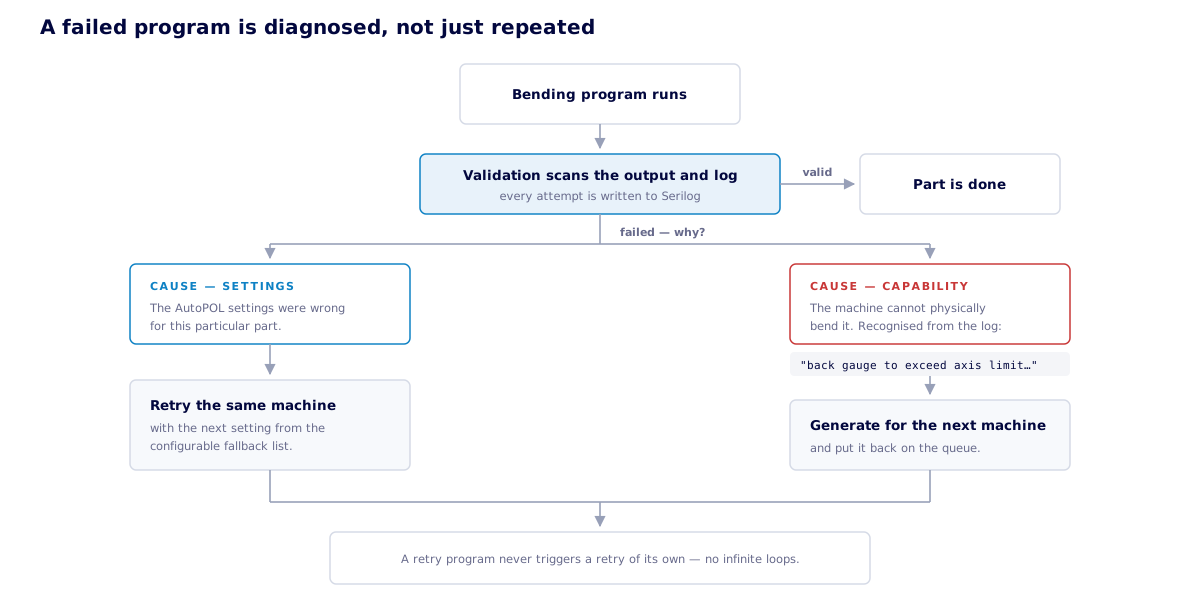
What the bending software reported is what separates “wrong settings” from “this machine cannot bend it”.
Unattended does not mean unsupervised. The Export Manager is the operator's window onto everything the service has done. It lists every order the pipeline has touched and, per order, every export run that was attempted — with the timestamp, how many parts came out bendable, how many were unbendable, how many were filtered, and whether that run actually produced output. When a part has been exported several times, the run that produced the active program is the one marked as such, so there is never a question of which attempt is the live one.
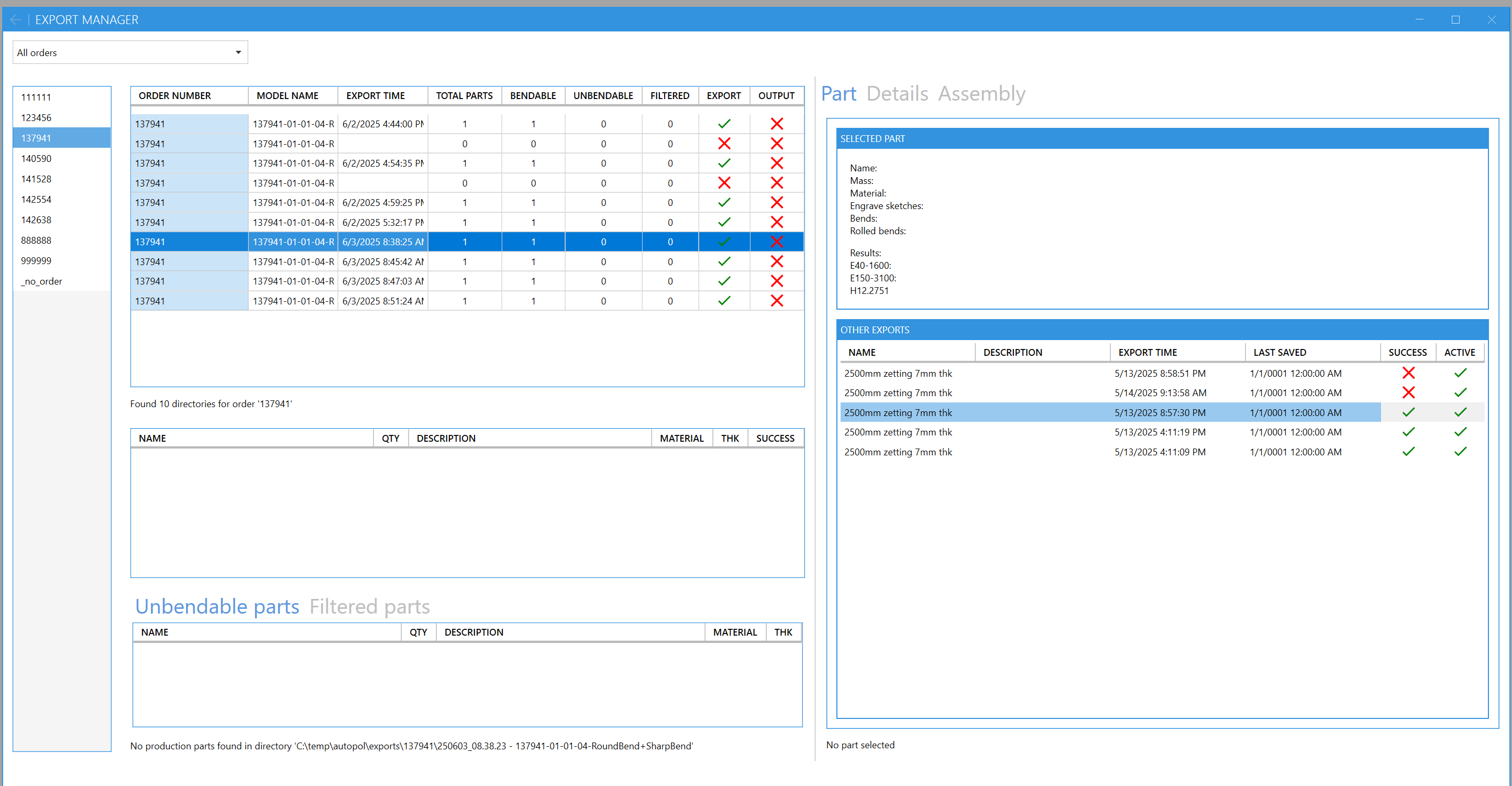
Every export attempt for an order, with its part counts and which run is the active one.
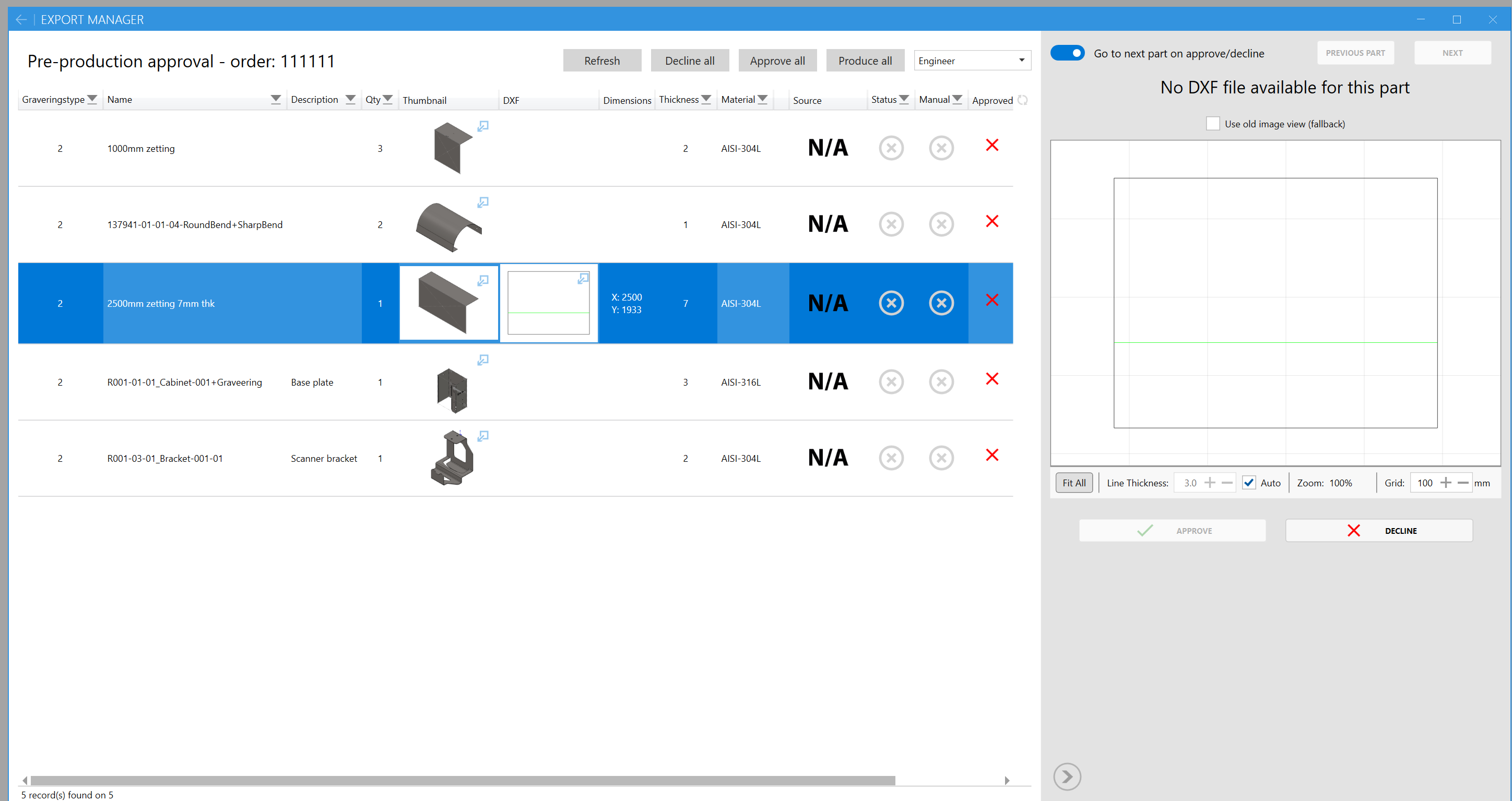
The second half of the tool is a pre-production approval queue. Each part is shown with a 3D thumbnail, the flat-pattern DXF, its unfolded dimensions, thickness and material, and an engineer approves or declines it before anything reaches the shop floor. Declining a part keeps it out of production without stopping the rest of the order, and the whole order can be approved in one action once it has been checked.
Pre-production approval: 3D thumbnail, flat pattern, dimensions and material per part, approved or declined one at a time.
Around the core service, several supporting tools keep the floor running smoothly. A Service Monitor surfaces queue depth and processing health to operators. A Queue Optimizer reorders pending jobs to group similar parts together for tooling efficiency. A Stock Tracker keeps an eye on raw material consumption per program. A SolidWorks add-in handles the export side from the design end, and a STEP-to-HTML converter generates inspection-friendly previews of every part that runs through the pipeline.
Every step of the pipeline is logged — program start, which settings matched, retry attempts, work moved to another machine, and final results — so a glance at the log tells an operator exactly what happened to any part. Configuration is split cleanly between application settings, machine definitions and the rules that drive settings and retries, so tuning production never needs a code change.
